
Walking into a tech shop in Australia feels like stepping into a maze. Rows of laptops and PCs all claim to be the “right choice,” while sales staff talk about processors, RAM, and benchmarks you don’t fully understand. You just want a computer that won’t slow down or feel outdated in six months.
Faced with this confusion, many people make the wrong choice. They either cut corners on a cheap device that can’t keep up or overspend on technology they’ll never actually use. Brand names and flashy reviews don’t always reflect real-world performance.
This tech guide walks you through how to choose a laptop or PC based on what you’ll actually do with it. You’ll learn which specs really count, which ones don’t, and where you can shop without second-guessing yourself.
Figure Out What You’ll Use Your Computer For
The biggest mistake people make when buying a computer is looking at specs before thinking about what they’ll actually do with it. Without a clear use case, you either pay for power you’ll never use or end up with a machine that can’t keep up.
For example, if you’re browsing the web, answering emails, and working in office apps, a basic setup with an entry-level processor and 8GB of RAM will handle everything smoothly.
But if you’re editing videos, running design software, or gaming after work, that changes completely. These tasks push a system harder and require stronger processors and dedicated graphics.
So ask yourself what you’ll spend most of your time doing. Will you use it for office tasks and light browsing? Or do you need it for gaming, advanced editing, or coding projects? Once you nail down your main use, the rest of the decision falls into place.
The Core PC Specs You Need to Know
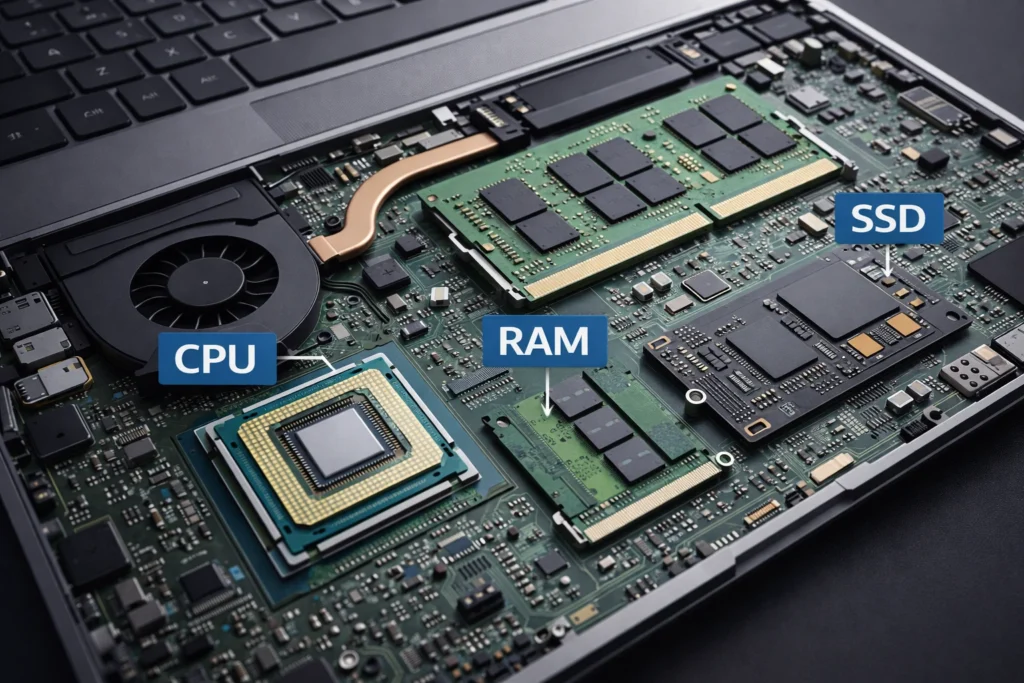
Computer specs sound like a foreign language until you break them down into what they actually do for you. Most PCs are built around three main parts: the processor, Random Access Memory (RAM), and storage.
Here’s how each one affects your daily use:
Processor (CPU) Runs Everything
The CPU is your computer’s brain. The stronger the processor, the faster your device manages everything from browsing to running multiple programs at once.
That strength comes from how many cores it has. More cores mean better multitasking when you’re running several applications simultaneously. If you keep 20 browser tabs open while streaming music and working on documents, more cores prevent slowdowns.
There are also processor generations to consider. Newer generation CPUs run cooler and faster, even when the specs look similar on paper. An Intel i5 from 2024 outperforms an i5 from 2020, even at comparable speeds (so don’t just look at the model number).
RAM Handles Your Multitasking
RAM is where your computer temporarily stores data it’s actively using. Think of it as your PC’s short-term memory for quick access.
You’ll find computers with 8GB to 64GB, depending on the model. For most users, 8GB works fine for basic tasks like browsing and documents. But when you don’t have enough RAM, your computer slows to a crawl because it starts using your hard drive as backup memory (which is way slower).
Storage Options: SSD vs HDD
Storage comes in two main types: SSDs and HDDs. Solid-state drives (SSDs) cost more per gigabyte but make everything feel faster, from startup to loading files. Hard disk drives (HDDs), on the other hand, are slower but offer more storage for less money.
The best approach is to combine both. Install your operating system and main programs on an SSD for speed, then use an HDD for photos, videos, and files you don’t access daily. This gives you speed where it counts without breaking your budget on storage capacity.
Pro Tip: Want to see how these components work together? Tools like Newegg’s PC Builder let you experiment with different combinations and see what fits your budget without leaving your couch.
Matching Computer Types to Your Actual Work
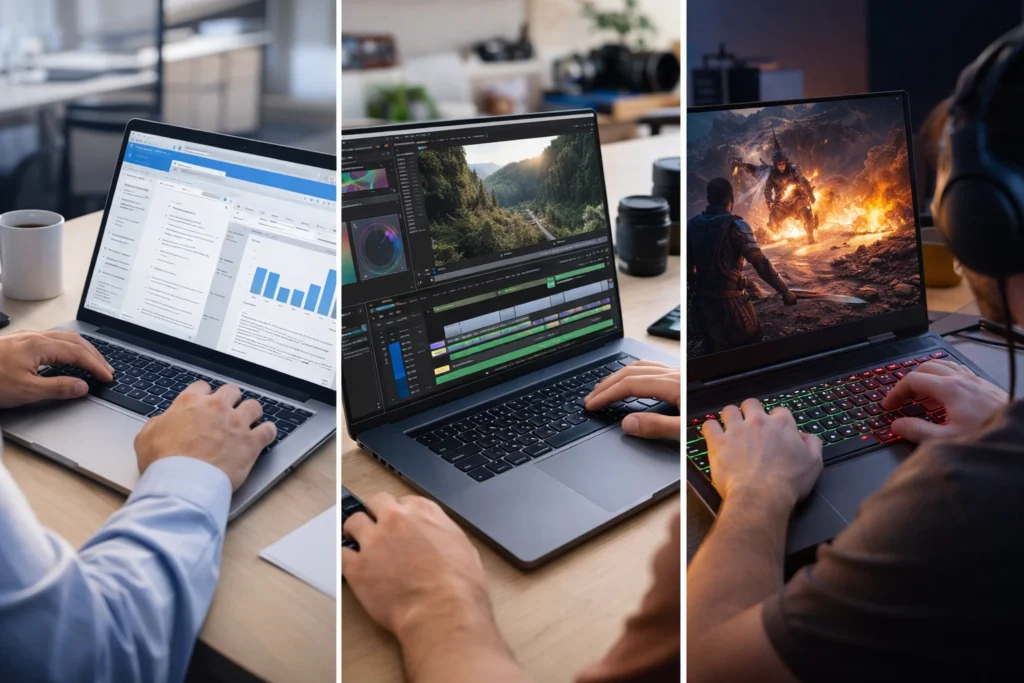
Now that you’ve identified what you’ll use your computer for, the next step is matching those tasks to specific hardware. Different tasks require different levels of performance. To match your tasks with the right hardware, start with these three common use cases:
- Light Office Work and Browsing: If you’re checking emails, working in Google Docs, and browsing the web, an entry-level processor with 8GB of RAM manages everything without lag. A $2000 gaming laptop won’t make your emails load faster (that’s just overkill for basic tasks).
- Photo and Video Editing: Programs like Photoshop and video editing software need stronger processors and at least 16GB of RAM. For more demanding work like editing 4K videos or handling large design files, you’ll also need a dedicated graphics card to avoid waiting hours for renders to finish.
- Gaming and 3D Work: These are the most demanding tasks and require dedicated graphics cards to run properly. You’ll want a mid-range to high-end processor, 16GB or more RAM, and a graphics card that can handle current games. Without proper graphics power, games will stutter or refuse to run entirely.
So, our suggestion is clear: match your PC to what you’ll actually do with it, and you’ll avoid paying for specs that sit unused.
Windows, Mac, or Chromebook: Which One’s Right?
The right operating system depends on what software you need and which devices you already own. Windows offers the most flexibility and software options, Macs work best if you’re already in Apple’s ecosystem, and Chromebooks keep costs down for basic tasks.
Let’s take a look at what each one does best:
Windows Gives You the Most Options
Windows runs the widest range of software, from business apps to games. You’ll find more programs built for Windows than any other system, which means fewer compatibility issues.
The other big advantage is choice. Laptop options span every budget, from $500 student machines to $2000 premium models. Most workplaces use Windows, too, so your files and programs work the same way at home and in the office.
Mac Works Best for Apple Users
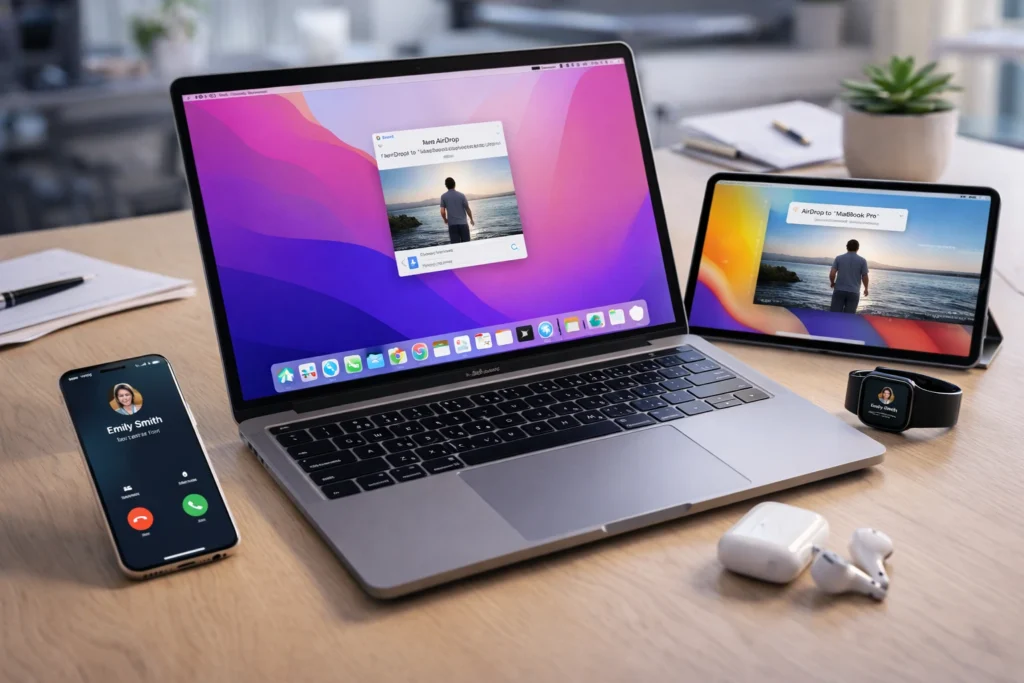
If you already use an iPhone or iPad, Macs integrate seamlessly through AirDrop, Handoff, and other Apple features. Apple’s control over both hardware and software means MacBooks deliver reliable performance and long battery life. They cost more upfront, but their build quality often outlasts similarly priced Windows laptops.
Chromebooks Save You Money
Chromebooks handle web browsing and basic tasks at much lower prices than Windows or Mac devices (they’re basically web browsers with keyboards). If most of your work happens in Gmail, Google Docs, and Chrome, a Chromebook gets the job done.
The trade-off is limited software options. You can’t run programs like Adobe Creative Suite or most PC games since Chromebooks rely on browser-based apps.
Finding Your Budget Sweet Spot
Most people either pay too much for features they won’t use or choose a cheap machine that quickly feels underpowered. That’s especially true with budget laptops under $600, which use lower-quality components that wear out faster.
So what’s the ideal price range? Spending around $1000 gets you a premium feel with no major compromises. At this price point, devices manage daily tasks smoothly and don’t feel sluggish after a year. You’ll find solid brands that last, and the extra investment now means you won’t need to shop for a replacement in just two years.
Time to Pick Your Computer
You now have a clear framework for making this decision. Match your daily tasks to the right processor, RAM, and storage. Factor in your operating system preference and budget, and the path forward becomes straightforward.
When you shop for computers in Australia, focus on tech specs that actually matter for your work. Check brands and reviews that align with your real needs instead of getting distracted by unnecessary features.
Need help finding the right device for your business or event? Get in touch with us, and we’ll match you with technology that fits your specific needs.