
Renting computers for employee training might sound simple, but the prep work behind it is where most sessions win or lose. The wrong devices, missing software, or a provider who doesn’t wipe data properly can make a well-planned training day become a frustrating one.
That’s the kind of situation A Vintage Affair Rentals helps Brisbane businesses avoid. This article covers the full computer rental checklist:
- What to confirm before delivery
- How to match specs to your training type
- What to do with company data once the computers go back
Run through each section before your next session. It’ll save you a phone call you really don’t want to make on the day.
Is Your Computer Rental Checklist Actually Ready?
Most businesses leave the checklist until two days before the session (then someone realises nobody confirmed what computers are coming). But when you follow through your computer rental checklist early, it gives your provider enough time to configure every device correctly.

Here’s what to sort before your rental service delivers the devices:
- Device Count and Type: The number of computers you need has to be confirmed before anything else. Think about the room layout too, because laptops suit flexible setups while desktops work better for fixed workstations.
- Software Requirements: Every programme that needs pre-installing should be listed with its version number and licence key. The provider needs both to configure the devices correctly before delivery.
- User Accounts and Access: Decide upfront whether trainees need individual logins or shared accounts. The access level each person gets also needs to be agreed before the devices arrive.
- Accessories Needed: Mice, keyboards, headsets, and external monitors aren’t always included in a standard hire. It’s worth checking whether those accessories are part of the package or quoted separately, along with any furniture like desks or power boards.
- Spare Units: Ask your provider how many backup devices come with the rental. If one computer fails mid-session, a spare unit on hand means the training keeps going without a break.
We often see that last one trips up a surprising number of businesses. Poor prep across any of these areas (spare units in particular) tends to surface on the day itself. So sort the full range of details early with your rental service, and your team can walk in ready to go.
Do the Specs Really Change Based on Training Type?
Not really; specs aren’t one-size-fits-all, and that actually works in your favour. A compliance module and a CAD training session need very different machines. And leasing the wrong spec wastes budget before the session even starts.
Take a look at how the right spec changes depending on what your team needs to do.
High Performance Computers for Software-Heavy Training
Design tools, video editing software, and data-heavy programmes all need high-performance computers to operate without lag. For most of these, 16GB RAM is the floor. Not to mention, underpowered laptops will slow down the whole room, and trainees will have to spend the first hour waiting for programmes to load rather than learning.
We recommend giving your provider the exact software names and version numbers upfront. This way, they can match the devices to the workload. That one step alone cuts out most of the compatibility problems businesses run into on the day.
Leading Brands That Work Fine for Standard Training Sessions
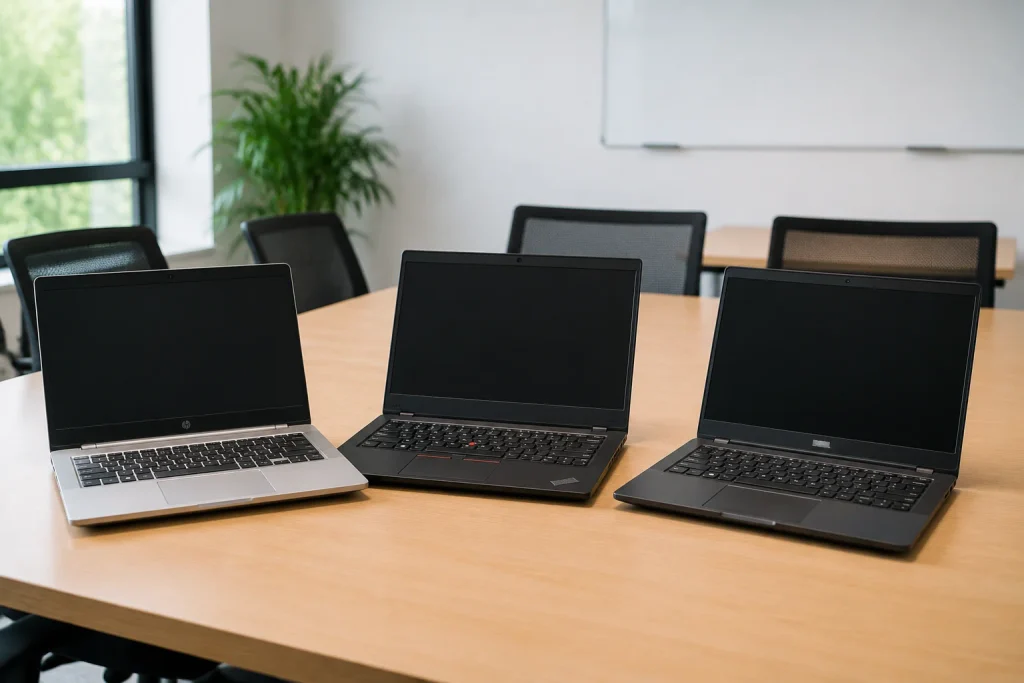
Microsoft 365, CRM walkthroughs (Customer Relationship Management), and compliance modules run without issues on machines with 8GB RAM. Surprisingly, this spec floor is lower than most businesses budget for. This means small teams often overspend on devices they don’t need.
As for models, HP EliteBook, Lenovo ThinkPad, and Dell Latitude are solid mid-range options from leading brands. They handle everyday office training pretty well.
One thing worth flagging: Apple devices can cause software compatibility problems in Windows-based training environments. So they’re rarely a safe pick for business leasing unless your software runs on macOS.
Matching Device Fleet Consistency to Your Session
Mixed device models in one training room can create port, charger, and performance inconsistencies across the group. We’ve set up enough training rooms to know that a mixed fleet creates problems before the first slide goes up (a three-hour session on mismatched machines feels much longer than that).
A consistent fleet from one provider keeps the session easier to run and quicker to troubleshoot. It’s best to confirm fleet uniformity with your provider before delivery. Also, ask for it in writing so there’s no confusion on the day.
What Happens to Your Data After the Computers Go Back?
After returning the computers, the provider should securely erase your data before reusing, reselling, or recycling.
Most businesses don’t think about this part until the session is already over. By then, trainees have logged into company systems, saved files, and left browser data across every rented device. Now here’s where it gets tricky: not all rental providers handle data the same way after return.
So check these areas before, during, and after the session.
What Should You Ask About Device Wiping
Re-imaging wipes all data from a device and reinstalls a clean operating system, so no trace of the previous session stays on the machine. Having helped Brisbane businesses prep for training sessions of all sizes, we’ve seen re-imaging questions come up every single time.
In this case, you can ask your provider to confirm their wiping process before you sign the leasing agreement, and verify that it covers every device in the fleet. Not all services re-image to the same standard, so asking for specifics upfront protects your business data and keeps you in control.

How Do You Protect Credentials on Rented Devices
Trainees shouldn’t save passwords or log into sensitive portals on rented computers unless it’s necessary for the training. Guest browser profiles clear cookies, browsing history, and site data once the session ends. However, downloaded files on Windows devices need to be deleted manually.
We suggest briefing your IT manager or session lead on these steps before the training starts. It takes ten minutes to run through with the group, and that saves a lot of awkward follow-up work with your provider.
What Should You Confirm Before Devices Are Returned
Logging out of all accounts and deleting downloaded files are the two things to complete before the devices leave the building. Get written confirmation from your provider that re-imaging is scheduled before those devices go to the next client.
Along with that, submit your online enquiry form early. That way, they can set the delivery date, plan the data handling, and have everything confirmed well before your session starts.
Your Next Training Session Starts With the Right Prep
Computer rentals can simplify temporary setups, but good planning still affects how smoothly everything will run for you. A few decisions before delivery can prevent delays once the devices arrive.
A solid rental experience comes down to three things:
- Knowing what to order
- Picking devices that suit the workload
- Sorting the data side before anyone logs in
When you can pull these off, the session runs the way it’s supposed to.
If you found this useful, there’s plenty more on A Vintage Affair Rentals. Browse our other articles to learn how to get the most out of your computer rentals budget and keep your technology costs in check.